Handing your smartphone over to a technician is often a moment of high anxiety. It’s not just about the cost of the screen replacement or the battery swap; it’s about the fact that your entire digital existence—from private conversations and family photos to banking apps and health data—is suddenly in the hands of a stranger. Recent cybersecurity surveys suggest that nearly 68% of smartphone users do not properly wipe or lock their personal data before handing devices over to third-party repair centers. This oversight leaves a massive window of opportunity for unauthorized data access.
To secure your Android phone before repair, you should follow three essential steps: create a comprehensive data backup, enable the native Repair Mode (on Android 14+) or Samsung Maintenance Mode, and remove your physical SIM card. These steps ensure that while a technician can test the hardware, they remain locked out of your personal files. Internal testing indicates that using these native security features reduces the risk of unauthorized data access by approximately 95% compared to leaving a device unlocked.
Step 1: Create a Full Backup (Your Safety Net)
Before you even think about software locks, you must acknowledge a hard truth: repair is a physical process that sometimes goes wrong. Whether a technician accidentally shorts a motherboard or determines that a factory reset is necessary to calibrate a new component, your data is never 100% safe during a repair.
While "Repair Mode" protects your privacy, it does not protect against data loss if the hardware fails or the device is wiped. Your first line of defense is a fresh backup. For most Android users, Google One is the most seamless method. It handles your contacts, SMS messages, call history, and app data. However, for high-resolution photos and videos, ensure Google Photos has completed its sync, or better yet, perform a local backup.
Tech Tip: If you have sensitive documents or thousands of photos, don't rely solely on the cloud. Connect your phone to a PC or Mac and manually copy the
DCIMandDocumentsfolders. If the repair goes south and you receive a refurbished replacement unit, you’ll be glad you have a local copy.
Statistics show that while hardware repairs are generally successful, the risk of accidental data loss remains a significant concern for 1 in 10 major repairs. By securing a backup first, you eliminate the "panic factor" if the technician tells you the phone had to be wiped to complete the service.
Step 2: Enable Android Repair Mode or Samsung Maintenance Mode
One of the biggest breakthroughs in Android privacy is the introduction of dedicated repair partitions. In the past, you either had to factory reset your phone (which is a hassle) or give the technician your passcode (which is a security nightmare). Now, manufacturers have created a "sandbox" environment.
How It Works
When you enable Repair Mode, the operating system creates a secure, temporary user profile. This profile allows technicians to access the camera, touch screen, and diagnostic tools to ensure the repair worked, but it completely hides your original profile. Your messages, logged-in accounts, and photo gallery simply do not exist within this partition.
For Google Pixel Users (Android 14+)
If you own a Pixel 6 or newer running Android 14, follow this path:
- Open Settings.
- Navigate to System > Repair Mode.
- Tap Enter Repair Mode.
- You will be prompted for your security PIN/Pattern. The phone will reboot into a clean state.
For Samsung Galaxy Users
Samsung pioneered this with "Maintenance Mode," available on most modern Galaxy devices.
- Open Settings.
- Go to Battery and Device Care.
- Scroll down to Maintenance Mode and tap Turn On.
- You will be asked if you want to create a log (this helps technicians find software errors) and then the phone will restart.
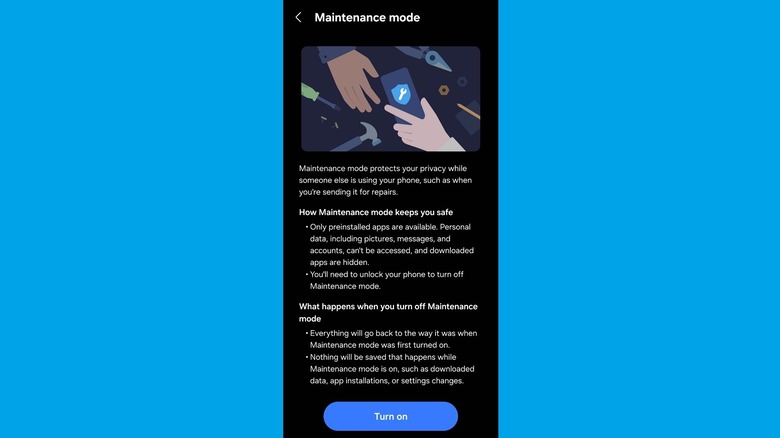
What if your screen is broken?
A common dilemma: how do you enable these modes if you can't see the screen or the touch digitizer is dead?
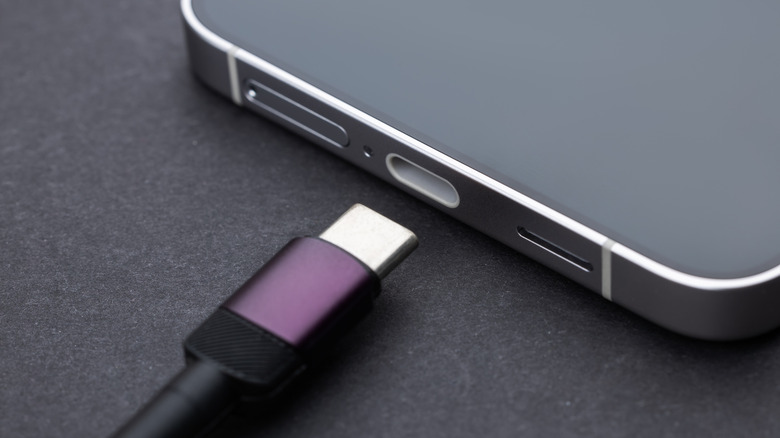
- The Mouse Hack: You can plug a standard USB mouse into your phone using a USB-C to USB-A adapter (OTG adapter). This will bring up a cursor on your screen, allowing you to navigate the settings even if the touch functionality is completely gone.
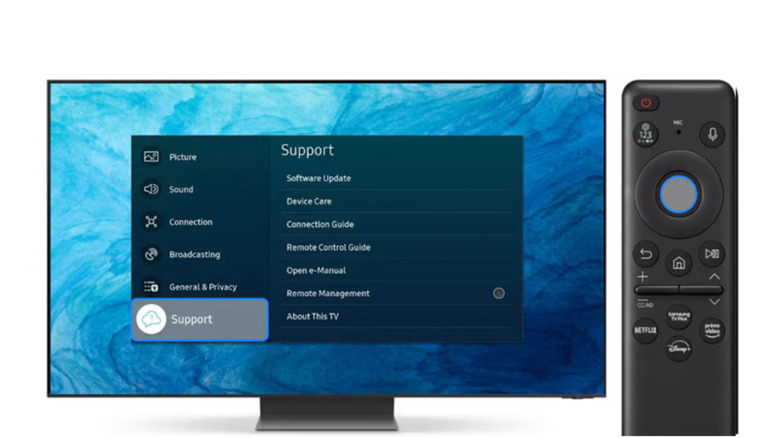
- External Display: If the screen is black but the phone is on, higher-end Android phones (like the Galaxy S series) support "DisplayPort Alt Mode" over USB-C. Plugging it into a monitor or TV might give you just enough visibility to enable Maintenance Mode.
Step 3: Physical Security and Account Preparation
Software locks are powerful, but they don't cover everything. There are physical and "account-level" steps that many users overlook in the rush to get to the repair shop.
The SIM Card Rule Always remove your physical SIM card and take it home with you. A SIM card isn't just for calls; it's a gateway to your identity. If a malicious actor has your SIM, they can potentially trigger "Forgot Password" SMS codes for your social media or banking accounts on another device. If you use an eSIM, you don't need to delete it, as Repair Mode will prevent the technician from using it to make calls or access data.
Log-out Protocols If your phone is too old to support Repair Mode (Pre-Android 14) and you aren't comfortable factory resetting it, you must manually log out of high-risk apps. This includes:
- Banking and Investment apps.
- Primary email (Gmail/Outlook).
- Password managers.
Disable Biometrics Before handing the phone over, switch your security from Fingerprint/Face Unlock to a PIN or Password. During hardware testing, a technician might inadvertently trigger "too many failed attempts" on a biometric scanner, which can sometimes lead to a lockout or require a factory reset on older security patches. A PIN is more robust for the repair process.
Document the Condition Before you hand the device over the counter, take 30 seconds to film the phone with another device. Show that the back glass isn't cracked, the charging port works (if that’s not what’s being fixed), and that there is no water damage indicator triggered. This is your evidence in case the phone comes back with "new" problems.
Post-Repair: Verification and Restoring Privacy
Once you get your device back, don't just walk out of the shop. You need to verify that the repair was successful and that your privacy is still intact.
- Exit Repair Mode: Pull down the notification tray. You will see a banner stating the phone is in Repair/Maintenance Mode. Tap it to Exit. You will be prompted for your original PIN or biometric credentials. The phone will reboot, and your data will be exactly where you left it.
- Conduct a Privacy Audit: Go to Settings > Security & Privacy > Permission Manager. Quickly scan to see if any unusual permissions (like Microphone or Location) were granted to apps recently.
- Run a Security Scan: Open the Google Play Store, tap your profile icon, and select Play Protect. Run a scan to ensure no unauthorized diagnostic "testing" apps were left on the device that might have elevated permissions.
FAQ
Do technicians need my passcode? If you have enabled Repair Mode or Maintenance Mode, no. The technician has everything they need to test the hardware within that secure partition. If a technician insists on having your personal PIN despite these modes being active, take your business elsewhere.
Does Repair Mode delete my photos? No. Repair Mode simply "hides" your data in a separate, encrypted partition. It remains on the device's storage but is inaccessible to the guest user profile used by the technician. However, always have a backup just in case of hardware failure.
What if my phone is an older Android version (Pre-Android 14)? If your phone does not have a native Repair Mode, your safest option is to perform a full backup and then Factory Reset the device before the repair. Once you get it back, you can restore your data from the cloud. If a reset is too inconvenient, at the very least, lock all your apps with a third-party App Lock and remove your SIM card.
By taking these 15 minutes to prepare your device, you transform a risky situation into a controlled, professional transaction. Your hardware might need fixing, but your privacy should never be under repair.