Quick Facts
- The Gold Standard: Filmmaker Mode is the most color-accurate preset, maintaining errors below a 3.0 DeltaE average for professional-grade fidelity.
- Brightness Killer: Default Eco Mode settings can reduce panel brightness by up to 20%; disabling these is essential for high-quality HDR.
- Motion Fix: Disabling Motion Clarity or Auto Motion Plus is the only way to eliminate the artificial Soap Opera Effect in movies.
- Model Check: Menu paths vary by year; 2022 and newer models use the All Settings menu, while older versions rely on the Smart Hub sidebar.
- HDR Secret: You must manually enable Input Signal Plus for each HDMI port to support the full bandwidth of HDR10 Plus devices.
- Fine-Tuning: Setting Sharpness to 0 and adjusting Shadow Detail prevents artificial halos and crushed blacks in dark scenes.
To achieve the samsung tv picture settings best for your 4K display, start by selecting Movie Mode or Filmmaker Mode to ensure color accuracy. Then, disable all Eco Sensor and Power Saving features to unlock maximum Peak Brightness for HDR content. These steps ensure your Samsung TV delivers the best picture quality for movies, sports, and gaming by adhering to cinematic standards.
1. Switch to Filmmaker Mode or Movie Mode
When you first unbox a Samsung TV, it is often set to Dynamic or Standard mode. While these presets look "poppy" in a bright showroom, they are notoriously inaccurate for home viewing. Dynamic mode oversaturates colors and pushes the color temperature toward a cold, blue tint that obscures fine detail. To see the image as the director intended, your first move should be navigating to Settings > Picture > Picture Mode and selecting Filmmaker Mode.
Filmmaker Mode was developed by the UHD Alliance to provide a universal "off-switch" for unnecessary post-processing. According to industry testing, Samsung's Filmmaker Mode is engineered to deliver high image accuracy by keeping color and brightness errors below a 3.0 DeltaE 2000 average. This ensures that skin tones look natural and the lighting in a scene matches the original production. If you are using an older Samsung model that lacks this specific preset, Movie Mode is your best picture settings for samsung 4k tv alternative. It offers a similar warm color temperature and disables most artificial sharpening.
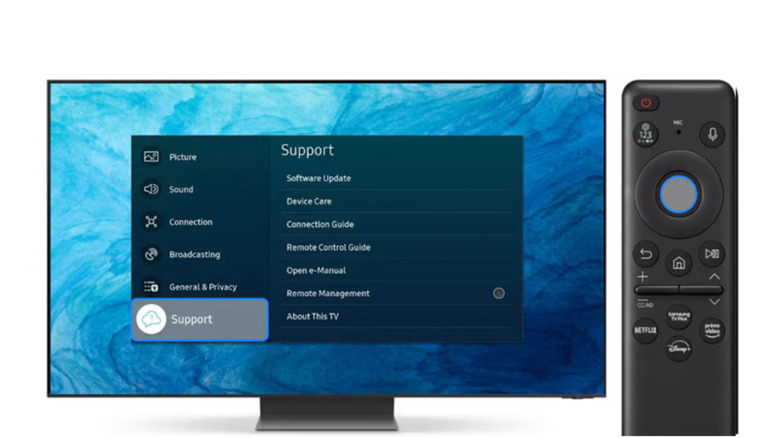
While Movie Mode is highly accurate, some users find it looks "dim" initially. This is because your eyes are likely adjusted to the overly bright, blue-tinted Standard mode. Give your eyes about 30 minutes to adjust to the more natural color temperature, and you will notice significantly more detail in shadows and highlights that were previously blown out. For those debating samsung tv intelligent mode vs movie mode, remember that Movie Mode follows rigid mastering standards, whereas Intelligent Mode uses AI to alter the image based on your room's lighting.
| Setting | Standard Mode | Filmmaker / Movie Mode |
|---|---|---|
| Color Temperature | Cool (Bluish) | Warm2 (Reddish/Natural) |
| Color Accuracy | Low (Oversaturated) | High (DeltaE < 3.0) |
| Post-Processing | High | Minimal / Off |
| Best For | Bright Showrooms | Critical Movie Viewing |
2. Disable All Power and Energy Saving Features
One of the most common complaints about Samsung TVs is that the screen randomly dims or fails to get bright enough during HDR10 Plus content. This is rarely a hardware limitation; instead, it is usually caused by the TV’s aggressive Eco Mode. Out of the box, these features use an Ambient Light Sensor to detect the brightness of your room and throttle the backlight accordingly to save energy.
To unlock the full potential of your panel, navigate to Settings > All Settings > General & Privacy > Power and Energy Saving. From here, you should toggle off Brightness Optimization and Brightness Reduction. Statistics show that enabling Samsung's default Eco Mode settings can reduce a television's power consumption by approximately 15% to 20% by automatically lowering the screen's brightness. While great for your electric bill, it is detrimental to best picture settings for samsung tv qled performance, especially when trying to achieve a high Peak Brightness for HDR highlights.
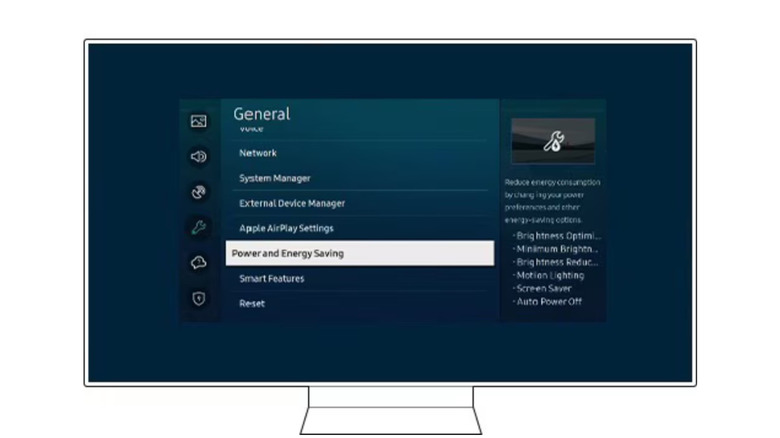
Once these sensors are disabled, the TV will no longer fluctuate in brightness as the sun moves across your room. This consistency is vital for a calibrated experience. If you find the screen too bright at night after disabling these features, it is better to manually lower the Panel Brightness slider in the Expert Settings rather than letting a sensor do it unpredictably. This ensures your samsung tv picture quality settings remain under your control at all times.
3. Kill the 'Soap Opera Effect' (Motion Clarity)
If you have ever watched a blockbuster movie and felt like it looked like a low-budget daytime drama, you are experiencing the Soap Opera Effect. This is caused by Motion Interpolation, a process where the TV’s processor inserts artificial frames between the original 24 frames per second (fps) of a movie to make movement look smoother. While useful for some content, it destroys the cinematic feel of film.
To fix this, head to Settings > Picture > Expert Settings > Picture Clarity Settings. To completely eliminate the effect, you can simply turn this feature Off. However, if you prefer a tiny bit of smoothing for fast-action content, you can set it to Custom. For the best picture settings for samsung 4k tv for sports, you might keep Blur Reduction high but set Judder Reduction to 0 or 1. This keeps the image sharp during a fast-moving football game without making the players look like they are gliding unnaturally across the grass.
Knowing how to disable auto motion plus samsung tv is perhaps the single most important adjustment for movie lovers. Most modern Samsung TVs also include a LED Clear Motion setting within this menu; this uses black frame insertion to clear up motion blur. While effective, it significantly reduces the overall brightness of the screen and can cause visible flickering for some viewers. For most home theater setups, keeping all Motion Clarity settings Off or at a very low Custom value is the recommended path for samsung tv settings for best picture consistency.
4. Optimize Expert Sliders: Sharpness and Shadow Detail
After setting your base mode and clearing out the energy-saving junk, it is time to look at the fine-tuning sliders. Many users mistakenly crank the Sharpness slider to 50, thinking it adds more detail to the best picture settings for samsung crystal uhd tv. In reality, high sharpness adds artificial "halos" or white outlines around objects, which actually masks fine texture. For 4K content, Sharpness should be set to 0 or no higher than 5 to maintain a natural look.
Another critical slider is Shadow Detail, found in the Expert Settings menu. If you find that dark scenes in movies like The Batman or Dune look like a solid black blob, you are experiencing "crushed blacks." Raising the Shadow Detail slider to +1 or +2 can reveal textures in dark clothing and night scenes without washing out the deep blacks that QLED and OLED panels are known for.
Expert Tip: While Samsung's Movie Mode typically maintains a brightness level of 150-200 nits for accuracy, the Standard Mode preset increases brightness to approximately 300-350 nits at the expense of color precision. If you find Movie Mode too dark, increase the 'Brightness' or 'Backlight' slider manually rather than switching back to Standard Mode.
Gamma Correction is the final piece of the puzzle. For most rooms, a Gamma setting of 2.2 is the standard. If you are in a pitch-black room and want a more "moody" cinematic experience, you might try BT.1886. Avoid the "Linear" settings unless you are in a very specific lighting environment, as it can make the image appear flat and lifeless.
5. Enable Gaming and HDR Enhancements
Samsung TVs are powerhouses for gaming, but you need to ensure the right "handshakes" are happening between your console and the screen. For the best picture settings for gaming samsung tv, ensure that Game Mode is set to Auto. This allows the TV to detect when a PS5 or Xbox Series X is connected and immediately drops the Input Lag to the lowest possible level. Within the Game Mode settings, you can also find Game Motion Plus, which allows for some motion smoothing without the massive latency penalty of standard Picture Clarity settings.
For HDR content, there is a "hidden" setting that many users overlook. Navigate to Settings > Connection > External Device Manager > Input Signal Plus. You must ensure this is toggled On for every HDMI port you are using. Without this, your TV may not negotiate the full bandwidth required for HDR10 Plus or 4K at 120Hz, resulting in a duller, 8-bit image rather than the vibrant 10-bit or 12-bit depth your TV is capable of.
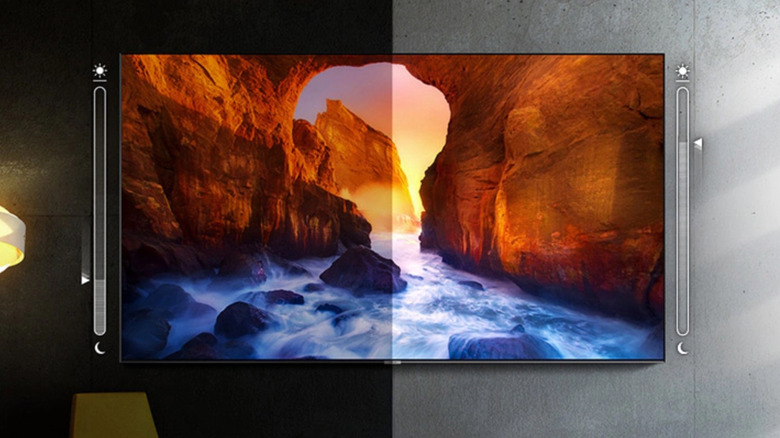
If your TV is in a living room with massive windows and you find yourself constantly fighting glare, this is the one scenario where you might revisit the samsung tv intelligent mode vs movie mode debate. Intelligent Mode uses the TV's processor to analyze ambient noise and light to boost dialogue and adjust the brightness curve in real-time. It isn't "purist" accurate, but for a Sunday afternoon football game in a sun-drenched room, it can be a lifesaver. Just remember to switch back to your calibrated Movie Mode once the sun goes down for that high-end cinema experience.
FAQ
What are the perfect picture settings for a Samsung TV?
The perfect settings usually involve selecting Filmmaker Mode or Movie Mode as a base, setting Color Tone to Warm2, and disabling all Eco/Power Saving features. Sharpness should be kept at 0, and Motion Clarity should be turned off to avoid the Soap Opera Effect. For HDR, ensure Input Signal Plus is enabled for your HDMI ports.
How do I improve the picture quality on my Samsung smart TV?
Improvement comes from removing "artificial" processing. Turn off features like Contrast Enhancer and Noise Reduction, which can smudge fine details. Additionally, ensure your TV is receiving a high-quality source signal; even the best settings won't make a low-bitrate 720p stream look like a 4K Blu-ray.
What is the best picture quality setting for TV?
For enthusiasts, the best setting is almost always Filmmaker Mode. It is designed to match the D65 white point used by Hollywood colorists. If your room is very bright, you can increase the panel's Brightness (Backlight) slider while remaining in Filmmaker Mode to maintain color accuracy without sacrificing visibility.
What is the best display mode for Samsung TV?
The best display mode depends on your content. Use Filmmaker Mode for movies and high-end TV shows, Game Mode for consoles to reduce latency, and Standard or Intelligent Mode only if you are in an exceptionally bright room where you need the AI to help overcome significant glare.