The JBL Infinity button is the physical trigger for JBL PartyBoost, a technology that allows you to sync up to 100 compatible speakers for a massive soundstage. To activate it, connect your primary speaker to your device via Bluetooth, then press the Infinity button on all additional units. Note that JBL PartyBoost is not backwards compatible with older Connect+ models. Whether you are looking to create an immersive stereo pair for your living room or a wall of sound for a backyard bash, understanding how to Sync JBL Speakers effectively is the key to unlocking the full potential of your portable audio gear.
What Does the Infinity Button Do on My JBL Speaker?
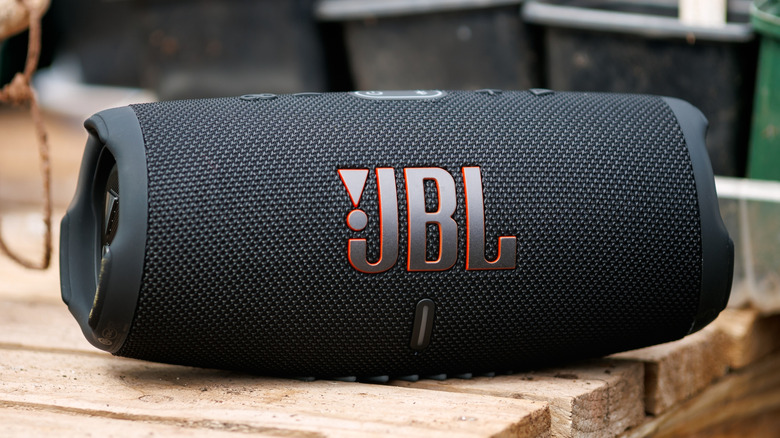
If you’ve recently unboxed a new Flip 6 or Charge 5, you’ve likely noticed a button shaped like an hourglass or an infinity symbol. So, what does the infinity symbol button on jbl mean exactly? Simply put, the JBL Infinity Button is your gateway to a multi-speaker ecosystem. When pressed, it sends out a signal to other nearby JBL speakers to join the current audio stream.
There are two primary ways this technology functions:
- Party Mode: This is the default setting. It allows you to link a massive number of speakers together—up to 100—all playing the same mono audio. This is perfect for large spaces where you want consistent volume and coverage in every corner.
- Stereo Mode: This is a more specialized configuration. Instead of all speakers playing the same thing, two identical models (e.g., two Flip 6 units) split the audio into dedicated left and right channels. This creates a true "soundstage" where you can hear spatial separation in your music.
The magic of Audio synchronization in the PartyBoost protocol is its low latency. Unlike older Bluetooth daisy-chaining methods that often suffered from echo or delay, PartyBoost ensures that every speaker in the chain hits the beat at the exact same millisecond.
Compatibility Matrix: Can You Pair Your Speakers?
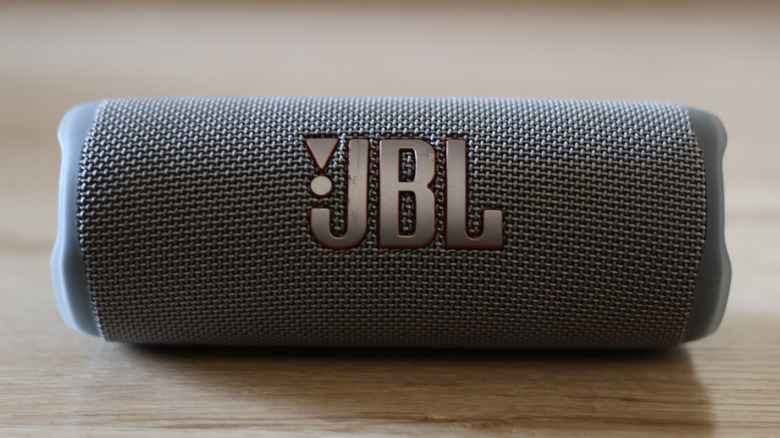
One of the most common points of confusion for JBL fans is compatibility. You might wonder, can i pair jbl flip 6 with charge 5? The short answer is yes—because both use the PartyBoost protocol. However, you cannot sync a Flip 6 (PartyBoost) with a Flip 4 (Connect+).
Understanding the difference between jbl connect plus and partyboost is vital before you buy a second speaker. Connect+ was the previous standard used in the Flip 4 and Charge 4. When JBL moved to PartyBoost with the Flip 5, they changed the underlying hardware and software to provide a more stable connection and better range. Unfortunately, these two "languages" are not cross-compatible.
JBL Speakers Compatible with PartyBoost List
To help you plan your setup, here is a quick reference guide of the models that support the JBL PartyBoost protocol:
| Speaker Series | Compatible Models |
|---|---|
| Flip Series | Flip 5, Flip 6 |
| Charge Series | Charge 5 (Standard Bluetooth version) |
| Pulse Series | Pulse 4, Pulse 5 |
| Xtreme Series | Xtreme 3, Xtreme 4 |
| Boombox Series | Boombox 2, Boombox 3 |
Important Note: If you own the "Wi-Fi" versions of the Charge 5 or Boombox 3, be aware that these models often prioritize AirPlay and Chromecast over PartyBoost. While they may support multi-room audio via Wi-Fi, they generally do not sync with the standard Bluetooth PartyBoost units in the same way. Always check your specific firmware version if you experience issues.
Step-by-Step: How to Sync 100 JBL Speakers Together
Linking a hundred speakers might sound like a task for a professional sound engineer, but JBL has made the process incredibly user-friendly. Here is how to connect 100 jbl speakers together using only the hardware buttons.
- Pair the Primary Speaker: Turn on the first speaker (the "Master") and pair it with your smartphone or laptop via Bluetooth. Start playing music to confirm the connection.
- Prepare the Secondary Units: Power on all other JBL speakers you want to sync. You do not need to pair these to your phone; they only need to be turned on.
- The "Infinity" Sequence: Press the JBL Infinity Button on the primary speaker. You will usually see the button light up or hear a brief confirmation tone.
- Join the Chain: Go to each of the other speakers and press their Infinity buttons. Within a few seconds, they will pick up the signal from the master unit and begin playing the synchronized stream.
The beauty of this system is that it creates a "mesh" network. While the master speaker receives the data from your phone, the other speakers help relay that signal to one another, which is much more stable than a traditional Daisy chain.
Using the JBL Portable App for Stereo Mode and Firmware Updates
While the physical buttons are great for quick setups, the JBL Portable app (formerly known as JBL Connect) is essential for fine-tuning your experience. If you are wondering how to set up jbl stereo mode using the app, it’s a simple three-step process:
- Connect both (identical) speakers to your phone.
- Open the JBL Portable app. It should automatically detect both devices.
- Toggle the switch from "Party" to "Stereo." The app will then ask you to designate which speaker is "Left" and which is "Right."
Beyond JBL Stereo Mode, the app is the only way to perform a Firmware update. JBL frequently releases updates to improve connection stability and power management. For instance, ensuring your speakers are on version 3.2 or higher is often the solution if you are having trouble maintaining a stable link between more than five speakers.
The Ultimate Party Setup: Range, Battery, and Placement
Creating a massive wall of sound requires more than just hardware; it requires a bit of physics. JBL PartyBoost technology allows users to wirelessly connect and synchronize up to 100 compatible speakers to play the same audio simultaneously in Party Mode. However, the environment matters.
The official recommended Wireless range for a stable connection is approximately 30 feet (10 meters) when there is a clear line of sight between the devices. In a real-world setting with walls, people, and other electronic interference, that range may drop.
Pro Tips for Placement:
- Avoid Obstacles: Keep the "Master" speaker in a central location or at an elevated height (like a table or shelf) to ensure it has a clear path to the other units.
- Battery Management: Syncing multiple speakers consumes more battery than standalone play. If you're planning an all-day event, keep the master speaker plugged into a power source, as it does the "heavy lifting" of receiving and re-transmitting the signal.
- Multi-room audio: If you are spreading speakers across different rooms, try to place them near open doorways to maintain the Audio synchronization without dropouts.
Troubleshooting: Why Is My JBL PartyBoost Button Not Working?
If you've followed the steps and you're still hearing silence, don't panic. There are usually three main reasons for a troubleshooting jbl speaker multi link connection session:
- Protocol Mismatch: As mentioned earlier, check if one of your speakers is an older Connect+ model. This is the #1 reason why a jbl partyboost button not working error occurs.
- Bluetooth Interference: If you are in a crowded area with dozens of active smartphones and Wi-Fi routers, the 2.4GHz signal can get crowded. Try moving the speakers closer together.
- Software Glitch: Occasionally, a speaker may "hang" in a pairing state. Reset the speaker by holding the Volume Up and Play/Pause buttons for 5 seconds until it powers off, then try the process again.
If you experience intermittent audio (where the music cuts in and out on the secondary speakers), it is almost always a range issue. Move the secondary speaker 2-3 feet closer to the master unit to re-establish a solid lock.
The Future of JBL Syncing: Auracast and Beyond
As we move into 2026, the landscape of Sync JBL Speakers is evolving again. While PartyBoost remains the gold standard for current models like the Flip 6 and Charge 5, JBL has begun introducing Auracast in its newest flagship releases, such as the Xtreme 4 and the PartyBox Stage 320.
Auracast is a new Bluetooth standard that allows for even more seamless broadcasting to an unlimited number of devices. The good news? JBL is making strides to ensure that PartyBoost and Auracast can coexist. Newer speakers often include "bridge" software that allows them to communicate across these protocols, ensuring your current investment in PartyBoost hardware won't become obsolete overnight.
Whether you're using the latest Boombox 3 or a trusty Flip 5, the ability to scale your sound is what sets JBL apart. By mastering the JBL Infinity Button, you aren't just playing music; you're creating an environment.
FAQ
How to connect 100 jbl speakers together?
To connect 100 speakers, pair your phone to one "master" speaker first. Then, power on all other compatible PartyBoost speakers and press the Infinity symbol button on every unit. They will automatically link into a mesh network and play the same audio in sync.
Why is my jbl partyboost button not working?
The most common reason is a compatibility mismatch. Ensure all speakers are PartyBoost-compatible (like Flip 5/6 or Charge 5). If they are compatible but won't sync, try updating their firmware via the JBL Portable app or performing a factory reset on the units.
Can i pair jbl flip 6 with charge 5?
Yes, you can. Since both the Flip 6 and the Charge 5 use the PartyBoost protocol, they can be synced together perfectly in Party Mode. However, you cannot use them in Stereo Mode, as Stereo Mode requires two identical speaker models to function.
Conclusion
The JBL PartyBoost ecosystem offers a level of scalability that few other portable audio brands can match. By understanding how to utilize the JBL Infinity Button and the JBL Portable app, you can transform a single speaker into a massive sound system capable of filling any venue. Just remember to keep an eye on your speaker's protocol—Connect+ vs. PartyBoost—and keep your firmware updated for the best results. Whether you're aiming for a high-fidelity JBL Stereo Mode setup or a 100-speaker "Party Mode" extravaganza, the power to Sync JBL Speakers is literally at your fingertips. Now, go forth and turn up the volume!