Quick Facts
- Market Leader: Amazon Kindle continues to lead the industry, holding an estimated 72% of the global e-reader market as of 2024.
- Battery Champion: Modern devices like the Kindle Paperwhite are rated to last up to 10 weeks on a single charge with standard use.
- Storage Capacity: You rarely have to worry about space, as 1GB of internal storage can hold approximately 1,000 standard e-books.
- Eye Care: Utilizing features like Warm Light and Dark Mode is essential for reducing blue light exposure during late-night reading.
- Organization: Enabling the Group Series toggle is the fastest way to declutter a growing library.
To access kindle settings on a Kindle Paperwhite, tap the top of the screen while reading or on the Home screen to reveal the Quick Actions panel, then select All Settings. This guide explores the best kindle settings to optimize your reading experience, ensuring your device supports your health and productivity goals.
Optimizing Visual Comfort: The Best Kindle Settings for Eyes
As someone who focuses on preventive care, I believe the way we consume digital content is just as important as the content itself. The E-ink display technology used in Kindles is inherently better for your eyes than the backlit LCD or OLED screens found on tablets and smartphones. E-ink mimics the look of real ink on paper, which significantly reduces glare and the resulting digital eye strain. However, a few tweaks to your kindle settings can take this comfort even further.
For those who enjoy reading before bed, managing blue light reduction is vital for maintaining a healthy sleep-wake cycle. Blue light inhibits the production of melatonin, the hormone responsible for sleep. If you own a newer model, such as the Paperwhite 11th Gen or the Kindle Oasis, you should immediately look into your kindle warm light schedule settings.
To set up a schedule:
- Navigate to Settings > Device Options > Display Settings.
- Select Warmth Schedule.
- Toggle the switch to On and choose "Sunset to Sunrise" or set a custom time.
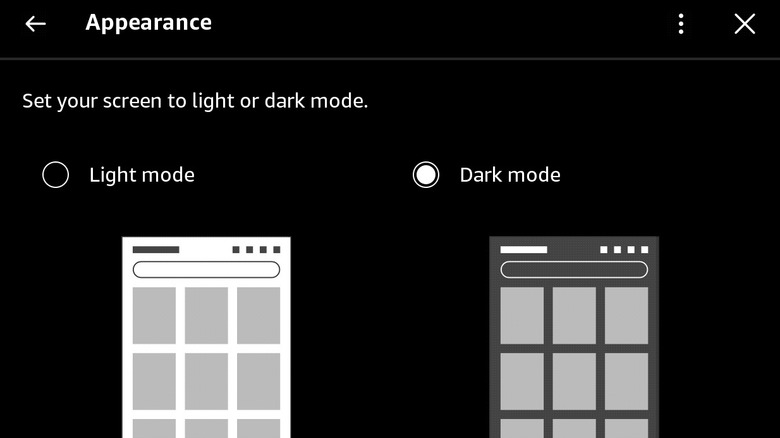
This transition from a cool white light to a gentle amber tone helps your brain wind down. If your device does not support warm light, enabling Dark Mode is a fantastic alternative. This flips the display to white text on a black background, which emits much less light overall, making it one of the best kindle settings for eyes when reading in total darkness.
Beyond light, custom typography plays a massive role in legibility. Everyone’s vision is unique, and your Kindle allows you to adjust the font family, size, and boldness to reduce the effort your eyes must exert to decode text. I personally recommend the Bookerly font for its high readability, or OpenDyslexic if you find traditional fonts difficult to follow.
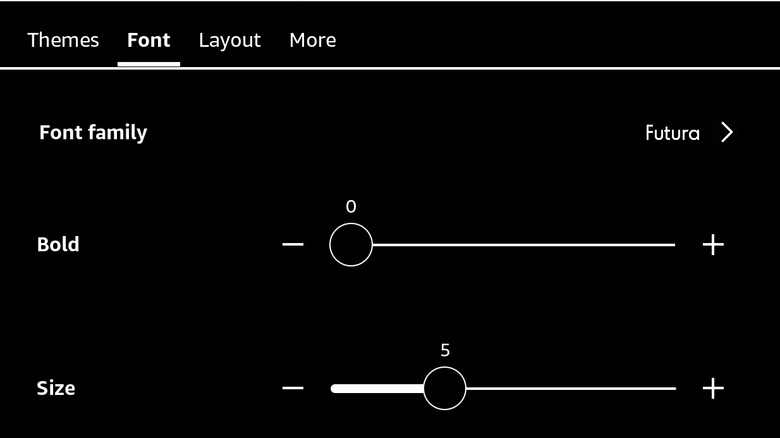
Pro-Tip: You can actually sideload your own fonts if the default options don't suit you. Connect your Kindle to a computer, find the fonts folder, and drop in your favorite .ttf or .otf files. They will then appear in your kindle font settings menu.
Performance & Progress: Power User Configurations
Once you have perfected the display, the next step in mastering your device involves streamlining the interface and managing resources. One of the most common questions from new users is how to see how much of a book they have left. By customizing the kindle settings show progress feature, you can choose to see your location, the page number, or the "Time Left in Chapter" at the bottom of the screen.
To adjust this while reading:
- Tap the top of the screen to bring up the menu.
- Tap the Aa icon.
- Select More.
- Tap Reading Progress and choose your preferred metric.
Seeing "10 minutes left in chapter" can be a great motivator, but it can also be a source of stress if you are trying to wind down. If you find yourself obsessing over the clock, I suggest turning this feature off entirely to enjoy a more immersive, "analog" experience.
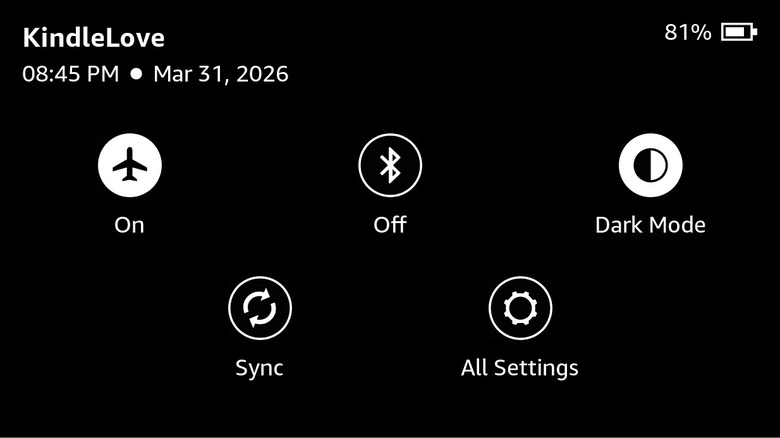
Battery longevity is another hallmark of the Kindle experience. While these devices are incredibly efficient, you can further enhance your kindle battery saver settings to ensure you never reach for your device only to find it dead. The most effective method is enabling Airplane Mode. Since the device doesn't need to constantly ping Wi-Fi or Bluetooth for synchronization while you are reading, keeping it offline can extend your battery life by weeks.
Additionally, check your Device Options for the Power Saver mode. When enabled, your Kindle will enter a deeper sleep state when not in use. It takes a second longer to wake up, but the trade-off in battery life is well worth it for most users. Another small but impactful tweak is the kindle page turn animation settings. Found under the "Reading Options" menu, this feature adds a smooth transition between pages. While it looks modern and sleek, disabling it can save a tiny amount of processing power and make the device feel slightly more responsive.
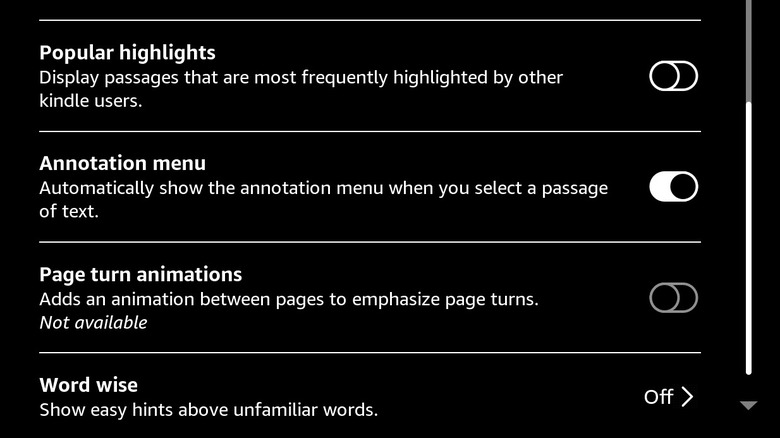
Finally, for a cleaner reading experience, I recommend you disable kindle popular highlights settings. This prevents those distracting dotted underlines that show what other readers have highlighted. Unless you enjoy the social aspect of reading, turning this off allows you to form your own unfiltered opinions on the text.
Library Mastery: Organizing Your Digital Collection
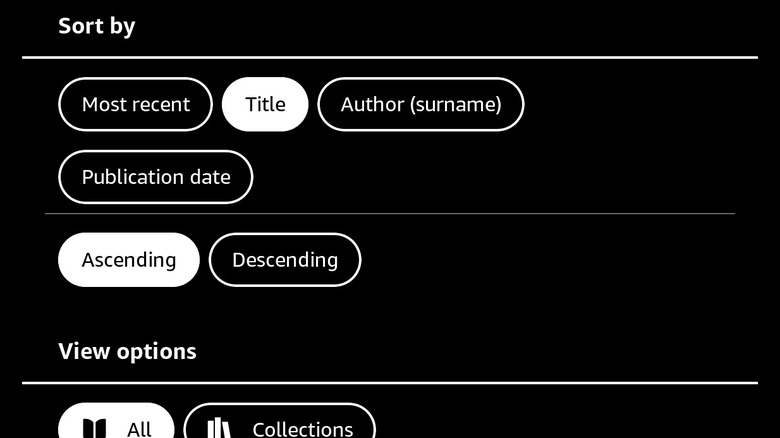
A cluttered library is a cluttered mind. When your device starts to fill up with hundreds of titles, finding your next read can become a chore. This is where you need to organize kindle library settings to create a minimalist and functional environment.
The first step for any power user is to enable the "Group Series in Library" toggle. This simple setting consolidates all the books in a series—like Harry Potter or A Song of Ice and Fire—into a single folder on your home screen. This immediately reduces the number of items you have to scroll through.
- Go to Settings > Home & Library > Library Settings.
- Toggle Group Series in Library to On.
Beyond grouping, I highly recommend creating custom Collections. You can categorize your books by genre, mood, or even "To Read Next." This level of organization makes the Kindle feel like a curated personal library rather than a random list of files.
If you are a fan of social reading, the Goodreads integration is a must-use. By linking your accounts, your Kindle will automatically update your "currently reading" status and sync your highlights to your Goodreads profile. This is an excellent way to track your reading streaks and connect with a community of fellow bibliophiles without needing to pick up your phone.
| Feature | Paperwhite (11th Gen) | Kindle Basic (2022) | Kindle Oasis (3) |
|---|---|---|---|
| Warm Light | Yes | No | Yes |
| Dark Mode | Yes | Yes | Yes |
| Waterproof | Yes (IPX8) | No | Yes (IPX8) |
| USB-C | Yes | Yes | No (Micro-USB) |
| Page Turn Buttons | No | No | Yes |
Digital Wellbeing: Healthy Reading Habits
As a preventive care editor, I cannot talk about kindle settings without discussing the ergonomics of reading. Digital wellbeing is not just about the device; it is about how you interact with it. Even with the best screen technology, staring at a fixed distance for hours can lead to accommodative spasms in the eye muscles.
To combat this, I encourage all readers to follow the 20-20-20 rule: every 20 minutes, look at something 20 feet away for at least 20 seconds. This simple habit allows your eyes to reset and prevents the fatigue that often follows a long reading session.
Furthermore, consider your physical posture. The optimal reading distance for a Kindle is usually between 40-50cm from your face. If you find yourself hunching over, consider increasing your font size so you can sit back comfortably. Your Kindle is a tool for relaxation and growth—by setting it up correctly, you ensure that it remains a source of wellness in your life rather than another contributor to digital burnout.
Check your firmware version regularly under Device Info to ensure you have the latest features and security updates. Amazon frequently rolls out "Reading Insights" which can help you track your streaks and set yearly goals, providing a gentle nudge toward maintaining your healthy habit.
FAQ
How do I change the display settings on my Kindle?
To change display settings, tap the top of the screen while in a book to bring up the menu. Tap the Aa icon to open the display settings window, where you can adjust font, layout, and reading progress. For brightness and warmth, swipe down from the top of the screen to access the Quick Actions panel.
Can a Kindle help with dyslexia?
Yes, Kindle devices include the OpenDyslexic font, which is specifically designed to increase readability for users with dyslexia. You can enable this by going to the Aa menu, selecting Font Family, and choosing OpenDyslexic from the list.
How to adjust Kindle reading settings?
Reading settings such as page refresh, highlights, and page turn animations can be adjusted by navigating to All Settings from the Quick Actions panel, then selecting Reading Options. Inside a book, the Aa menu also provides several reading-specific customizations like margins and line spacing.
Where is the settings menu on my Kindle?
The main settings menu is accessed by tapping the top of the screen on the Home page or within a book, then selecting the downward-facing arrow or swiping down to open the Quick Actions panel. From there, tap All Settings to see the full list of device configurations.