Quick Facts
- Troubleshooting Habits: According to recent data, 51% of users prefer to troubleshoot hardware connectivity issues independently, although only 62% of these scenarios are resolved without needing professional intervention.
- Instant Recovery: Pressing Win+Ctrl+Shift+B on your keyboard resets your graphics driver instantly, which can wake a sleeping display.
- Device Standards: Over 76% of business laptops released between 2024 and 2025 now utilize USB-C or DisplayPort connections for modern video output.
- Expected Lifespan: A standard LCD monitor typically lasts between 30,000 and 60,000 hours, providing roughly 10 to 20 years of service under normal conditions.
- Signal Verification: If you see a "No Signal" message, it usually points to an input source mismatch or a loose physical connection rather than a broken screen.
- Core Fix: If your monitor is black but computer is on, the first step is ensuring the video cable is seated firmly in both the monitor and the dedicated GPU port.
Experiencing computer monitor problems can be frustrating, especially when your monitor is black but computer is on. This guide covers everything from physical DisplayPort cable checks to advanced video drivers updates to get your workspace back in order. If your monitor is black but the computer is on, first check that the video cable—such as HDMI or DisplayPort—is securely connected to both the monitor and the correct port on your dedicated GPU. You can often resolve software-related black screens by pressing Win+Ctrl+Shift+B to refresh the graphics driver. Ensure the monitor is set to the correct input source via its on-screen display menu and verify it is receiving consistent power from the outlet.
Instant Fixes: The Emergency Toolkit
When you are staring at a dark screen, the instinct is often to assume a total hardware failure. However, many computer monitor problems are purely related to software "handshakes" between the Windows operating system and the graphics card. Before you start unhooking everything, try the graphics driver reset shortcut. By pressing Win+Ctrl+Shift+B, you force Windows to reload the video driver. You will hear a short beep, and the screen should flicker or refresh. This is a primary fix when a monitor is black but computer is on despite the hardware appearing to be active.
If the keyboard shortcut does not yield results, consider the display mode settings. If you use multiple screens, your computer might have accidentally switched to "Second screen only" or "PC screen only" mode. Press Win+P to bring up the projection menu. Even if you cannot see the menu, you can tap the P key and Enter to cycle through modes like Extend or Duplicate. This is a common solution for users wondering why does my computer monitor keep turning off or failing to show the desktop environment after a restart.
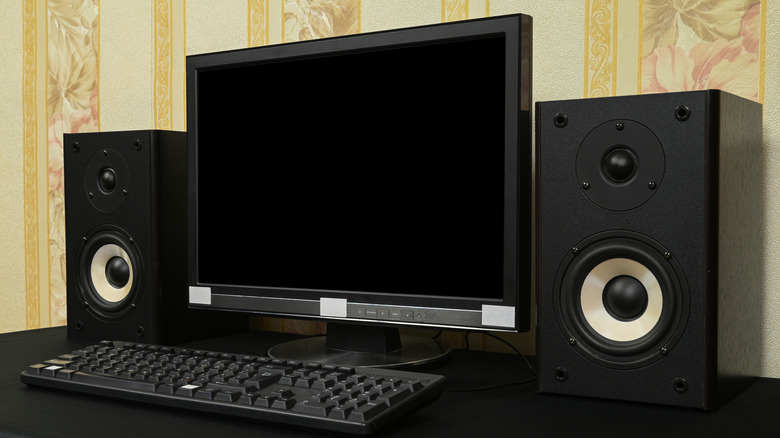
Another vital emergency step is a full power cycle. This clears residual electricity that can sometimes cause the internal logic of the display to freeze. Turn off the monitor, unplug it from the wall, and disconnect it from the computer. Hold the power button on the monitor for 30 to 60 seconds to drain the capacitors. Plug everything back in—starting with the wall power and then the DisplayPort cable or HDMI connector—and try again.
Physical Connectivity & Signal Troubleshooting
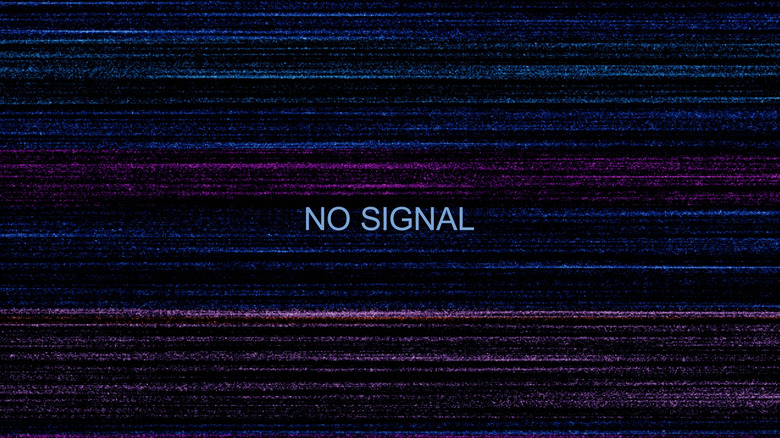
Physical connection errors remain the leading cause of display issues. It is easy for a cable to wiggle loose just enough to lose the data pins while still looking connected. If you see a message stating there is no signal coming from your computer, the monitor is telling you it is powered on but receiving no data. On certain hardware, like when there is no signal coming from your computer dell monitor, the on-screen message might even suggest checking the cable connection specifically.
Ensure you are plugging the cable into the correct spot. Many desktop computers have two sets of video ports: one on the motherboard (near the USB ports) and one on the dedicated graphics card (usually lower down the chassis). If you have a dedicated GPU, the motherboard ports are often disabled by default. Plugging a DisplayPort cable into the motherboard instead of the GPU is a classic cause for there is no signal coming from your computer and a blank screen.
Check the LED status light on the monitor. A green or white light usually signifies an active signal. An amber or orange light typically means the monitor is in power-saving mode because it perceives no incoming data. If the light is completely off, you have a power delivery issue. Swap the power cord or try a different wall outlet. For the video signal, if your current cable is several years old, it might not support the bandwidth required for your current resolution. Testing a different DisplayPort cable can quickly rule out a faulty cord.
Windows 11: Solving Detection & Display Issues
Software configuration is the next frontier, particularly with modern operating systems. If you have a setup where the second monitor not detected windows 11 is the primary complaint, the "Detect" feature is your best friend. Navigate to System > Display and look for the Multiple Displays section. Clicking the Detect button can force Windows to ping it via the video drivers to establish a link. If this fails, the issue is likely a driver conflict or a physical port limitation, such as a docking station that has reached its maximum bandwidth capacity.
Screen quality is just as important as signal detection. If you notice computer monitor problems flickering or shifting colors, it could be a refresh rate mismatch. Windows 11 sometimes defaults to a higher refresh rate than the cable or the panel can handle. Go to Advanced Display Settings and ensure the Windows refresh rate matches the native specifications of your hardware. Similarly, how to fix blurry computer monitor display issues usually involves setting the OS to the native resolution. LCD and LED panels look their best only when the software resolution matches the physical number of pixels on the screen.

If the OS still refuses to cooperate, the video drivers are likely the culprit. Open the Device Manager, right-click your display adapter, and select Update driver. Alternatively, visit the manufacturer’s website (NVIDIA, AMD, or Intel) to download the latest software stack. Outdated drivers are the most frequent cause for a second monitor not detected windows 11, particularly after a major OS update.
Advanced Solutions for Persistent Errors
For users who have tried the basics and still face problems with computer monitor stability, "invasive" software fixes might be necessary. Some systems experience a "Timeout Detection and Recovery" (TDR) error, where the GPU takes too long to respond, and Windows resets the connection, causing the monitor to flash black. By modifying the Windows Registry and adding a TdrDelay value set to 8, you give the GPU more time to process, which can stop frequent blacking out.
Warning: Modifying the Registry can cause system instability if done incorrectly. Always back up your registry before making changes.
When drivers are severely corrupted, a simple update isn't enough. Using a tool like Display Driver Uninstaller (DDU) in Safe Mode can completely wipe the driver remnants. This is particularly useful if your computer monitor backlight problems seem to coincide with graphic artifacts or system crashes. After the clean wipe, you can reinstall the video drivers from scratch to ensure a clean communication stack.
Many premium displays also have internal firmware that can be updated. Manufacturers sometimes release patches to improve compatibility with specific graphics cards or to fix computer monitor problems flickering on high-refresh panels. Check your OSD menu for a firmware version and compare it to the support page for your specific model.
Hardware Realities: Identifying Permanent Failures
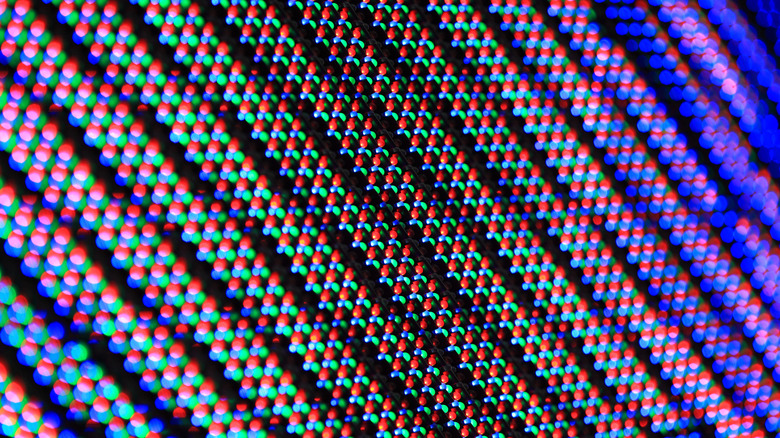
At some point, we must acknowledge that hardware does eventually fail. One common question involves the computer monitor stuck pixel vs dead pixel debate. A stuck pixel is usually a single color (red, green, or blue) and can sometimes be revived by using software that cycles colors rapidly or by applying very gentle pressure. A dead pixel, however, is a black spot that does not light up at all. Dead pixels signify a hardware failure in the thin-film transistor (TFT) layer and generally cannot be fixed without panel replacement.

Other hardware-level computer monitor problems include failing backlights or failing capacitors. If your screen is extremely dim but you can still see faint shapes when you hold a flashlight to the glass, you are likely dealing with computer monitor backlight problems. Similarly, if the monitor takes several minutes to turn on or makes a high-pitched whining sound, the internal power supply capacitors are failing. Given that a standard LCD monitor typically lasts 30,000 to 60,000 hours, if your device is over a decade old, a replacement is often more cost-effective than a professional repair.
FAQ
What are the signs of a failing computer monitor?
Common signs include persistent screen flickering that doesn't stop with cable changes, significant backlight bleed (bright patches on the edges), vertical or horizontal lines that stay on the screen regardless of the input, and the monitor taking an increasingly long time to power on. Physical "bruises" or dead pixels are also clear indicators of physical damage.
What is the common monitor problem?
The most frequent issue is a "No Signal" error caused by a loose cable or the monitor being set to the wrong input source (e.g., set to HDMI when it's plugged into DisplayPort). Following this, software-related detection errors in Windows and outdated video drivers account for the majority of user complaints.
What is the average lifespan of a monitor?
The estimated lifespan for most LCD and LED monitors is between 30,000 and 60,000 hours. For a user who has the monitor on for 8 hours a day, this translates to roughly 10 to 20 years of use. However, the backlight usually dims over time, and older units may lose color accuracy long before they completely stop working.
Is it worth fixing a computer monitor?
For high-end professional or gaming monitors that cost upwards of $500, a repair might be worth it if the issue is a simple capacitor or port. However, for standard office monitors, the cost of labor and parts often exceeds the price of a brand-new, more energy-efficient model with a fresh warranty.
Is it worth fixing a monitor?
Generally, if the panel itself is cracked or has significant dead pixels, it is not worth fixing. The panel is the most expensive component, often costing 80% of the total unit price. If the problem is purely a broken stand or an external power brick, those are easy and cheap to replace.