Quick Facts
- Mechanism: The feature functions as a hybrid shutdown by saving the system kernel and loaded drivers into a specialized file before powering down.
- The Evidence: You can verify this by checking Task Manager uptime, which often shows days or weeks of continuous activity despite daily shutdowns.
- Storage Impact: The process relies on the hiberfil.sys file, which occupies a significant portion of your primary drive based on your total RAM.
- Hardware Choice: While it offers massive benefits for traditional hard drives, the difference is negligible for modern NVMe solid-state drives.
- Troubleshooting: Disabling this feature is frequently the first step to resolving weird driver glitches, dual-boot errors, or hardware detection issues.
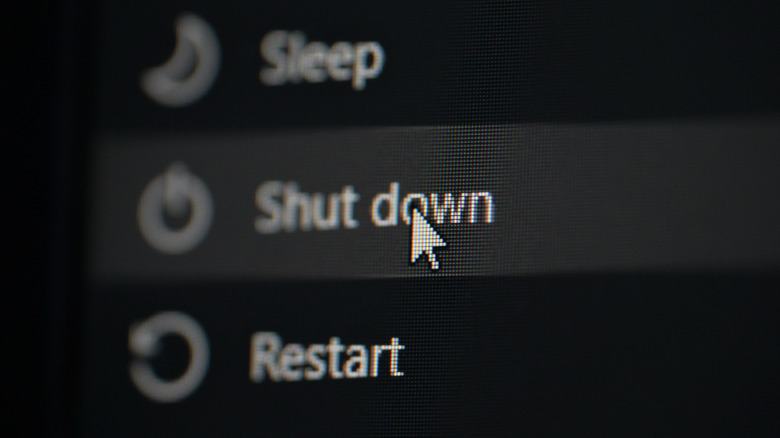
- The Bypass: If you need a one-time true shutdown without changing settings, holding the Shift key while clicking Shut Down forces a complete power cycle.
Fast startup windows 11 is a hybrid power mode that combines a standard shutdown with hibernation. Instead of fully closing all system processes, Windows saves the system kernel and loaded drivers to the hibernation file (hiberfil.sys) before powering off to speed up subsequent boots.
Why Your PC Isn’t Truly Off: The Hybrid Shutdown Explained
When you click that power button in the Start menu, you probably expect your computer to stop everything it is doing, clear the memory, and go cold. However, in the modern era of Windows, a standard shutdown is more like a carefully orchestrated pause. This is due to a state known as a hybrid shutdown. In a traditional cold boot, the computer must load the entire operating system from scratch—initializing drivers, starting services, and setting up the kernel session. This takes time, especially on older hardware.
To solve this, Microsoft introduced a system where the user session (your open apps like Chrome or Word) is closed, but the system kernel is not. Instead, the OS takes an OS state snapshot of the kernel session persistence and writes it to the disk in the hiberfil.sys file. When you press the power button to turn the PC back on, Windows doesn't "boot" in the classic sense. It simply reads that snapshot from the hibernation file and injects it back into the RAM. This allows the system to skip the heavy lifting of a full initialization.
From a power perspective, your PC is technically off. If you pull the plug, it won't lose data because the state is saved on the SSD or HDD. However, from a logical perspective, the operating system hasn't been refreshed. It is carrying over the same kernel session from the last time you performed a full restart. This means any tiny errors or memory leaks in the kernel or drivers are preserved and brought back to life the next time you "turn on" your computer.
The Task Manager Truth: Why Windows 11 Uptime Doesn’t Reset
If you want to see proof that your computer hasn't actually been off, you don't need any fancy software. Windows provides the evidence right in the Task Manager. Many users are shocked to find that after "shutting down" their computer every night for a week, their system clock shows an uptime of seven days or more.
To see this for yourself, right-click the Taskbar and select Task Manager. Navigate to the Performance tab and ensure CPU is selected. Look for the label that says Up time. Because the system kernel remains active in a saved state rather than being completely refreshed, the timer keeps ticking. This is precisely why windows 11 uptime doesn't reset after shutdown.
This persistence is the root cause of many "ghost" problems. Have you ever had a Wi-Fi driver stop working, or a USB port become unresponsive, only for the problem to persist even after you turned the PC off and back on? That is because the driver was never actually reloaded; the system simply reloaded the same "buggy" state from hiberfil.sys. To force a full system refresh and reset the uptime clock, you must either select the Restart option or use the how to fully shut down windows 11 without disabling fast startup trick: hold the Shift key while clicking Shut Down.
Is Fast Startup Bad for Windows 11? (The SSD vs. HDD Debate)
The question of whether to turn on fast startup windows 11 good or bad usually comes down to your storage hardware. When this feature was first introduced, most people were still using mechanical hard disk drives (HDDs). On an HDD, reading a large hibernation file is significantly faster than hunting for thousands of small system files scattered across a spinning platter. Microsoft reports that the fast startup feature can make boot times 30% to 70% faster on most systems by hibernating the Windows kernel session instead of closing it entirely.
However, for modern NVMe SSDs, the math changes. These drives are so fast that the time saved by loading a hibernation snapshot is often less than two seconds. In exchange for that tiny gain, you deal with several potential disadvantages. For instance, the system saves the kernel state and loaded drivers to the hiberfil.sys file, which typically utilizes between 10% and 15% of physical RAM in terms of storage space on your drive.
| Feature | Hard Disk Drive (HDD) | NVMe Solid State Drive (SSD) |
|---|---|---|
| Boot Speed Gain | Significant (30s+ saved) | Minimal (1-3s saved) |
| System Stability | Higher risk of "stale" errors | Higher risk of "stale" errors |
| Drive Wear | Negligible | Constant writes to hiberfil.sys |
| Recommendation | Keep enabled | Disable for better stability |
Beyond speed, there is the disk corruption risk. If you use a dual-boot setup with Linux or another version of Windows, the "hibernated" partition is locked. Accessing that drive from another OS can lead to permanent data loss. Additionally, users often find they have trouble with UEFI firmware access because the PC skips the "Press F2 for BIOS" window so quickly it becomes impossible to enter. If you are asking is fast startup bad windows 11, the answer is "no" for speed, but "yes" for system cleanliness and troubleshooting.
How to Disable Fast Startup in Windows 11
If you prefer a clean slate every time you press the power button, you can easily toggle this setting off. There are several ways to do this, ranging from the classic menu to the command line for power users.
Method 1: The Control Panel
This is the standard way to adjust your power behavior. Note that you will need administrator privileges to change these settings.
- Open the Start menu, type Control Panel, and hit enter.
- Navigate to Hardware and Sound > Power Options.
- On the left-hand sidebar, click Choose what the power buttons do.
- Click the link at the top that says Change settings that are currently unavailable.
- Under the Shutdown settings section, uncheck the box for Turn on fast startup (recommended).
- Click Save changes.
Method 2: Command Line (CMD)
If you prefer a quicker approach or want to script this across multiple machines, you can use the powercfg utility. This is the most efficient way to disable fast startup windows 11 cmd style.
- Press the Windows Key, type cmd, and select Run as Administrator.
- To disable the feature entirely (which also removes the hiberfil.sys file and saves disk space), type: powercfg -h off and press Enter.
- If you want to keep hibernation but just disable the fast boot behavior, it is better to use the Control Panel method mentioned above.
Alternatively, some advanced users prefer to disable fast startup windows 11 registry keys, though this is generally unnecessary unless the UI options are blocked by a group policy. If the fast startup option missing windows 11 is your primary issue, the CMD method is actually the best fix.
Fix: Fast Startup Option Missing in Windows 11
It can be frustrating to follow a guide only to find the setting you are looking for isn't there. If you open your power settings and the "Turn on fast startup" checkbox is completely missing, it usually means that hibernation has been disabled at the system level.
This often happens on laptops with limited storage or on systems where a "cleaner" app has deleted the hibernation file to save space. Since the hybrid shutdown relies on the hibernation file to store the kernel snapshot, the option disappears when hibernation is off.
To fix this and bring the option back:
- Open Command Prompt as an Administrator.
- Type powercfg /hibernate on and press Enter.
- Restart your computer.
- Return to the Power Options menu in the Control Panel. You should now see the checkbox available under the shutdown settings.
FAQ
Is it good to turn off fast startup in Windows 11?
It is generally a good idea to turn it off if you are using a modern SSD. While it speeds up the initial boot by a second or two, it prevents a true system refresh. Turning it off ensures that every time you shut down, the kernel is cleared, drivers are reloaded, and the system starts from a stable, clean state. It also prevents issues with dual-booting and accessing your BIOS.
What are the disadvantages of Windows fast startup?
The main disadvantages include system uptime not resetting, which can lead to driver instability over time. It can also cause problems for users who dual-boot with Linux, as the Windows partition remains "locked" in a hibernated state. Additionally, it makes it harder to access UEFI or BIOS settings and consumes disk space for the hiberfil.sys file.
How to turn off fast startup Windows 11 2026?
The process remains consistent through the Control Panel. Navigate to Hardware and Sound > Power Options > Choose what the power buttons do, click Change settings that are currently unavailable, and uncheck Turn on fast startup. You can also use the Command Prompt as an administrator and run the command powercfg -h off to disable it and reclaim disk space.
What will happen if I disable fast startup?
When you disable this feature, your computer will perform a full cold boot every time you turn it on. This means Windows will close all processes and the kernel entirely during shutdown. Your boot time might increase slightly—by about 5 to 30 seconds depending on your hardware—but your system will be more stable and your Task Manager uptime will reset to zero every time.
Is it okay to turn off fast startup in Windows 11?
Yes, it is perfectly safe to turn off this feature. In fact, many IT professionals recommend disabling it on systems with SSDs to avoid "stale" kernel sessions that can lead to weird software bugs. Your hardware will not be affected, and you might actually find that your PC runs more smoothly because it gets a fresh start every day.