Imagine sitting in your living room, the glow of your high-definition smart TV illuminating the space, ready to dive into the massive worlds of Halo Infinite or Forza Horizon 5. But there’s a twist: there is no bulky console humming under the TV stand, and no tangled mess of HDMI cables snaking across the floor. Did you know you can play high-end AAA titles on your smart TV even without the console hooked up?
Thanks to the rapid evolution of cloud gaming and integrated apps, your television has become a powerful gaming hub in its own right. However, the experience is only as good as your interface. To truly enjoy these games, you need the tactile precision of a proper gamepad. To get started, you simply need to put your controller into discovery mode. To put an Xbox controller in pairing mode for a smart TV, hold the Xbox button to power it on, then press and hold the small Pair button on the top edge for three seconds until the logo flashes rapidly. This simple handshake between your hardware and your display is the key to unlocking a console-free revolution.
Compatibility: What You Need Before Starting
Before we dive into the "how-to," we need to ensure your hardware is up to the task. Not every Xbox controller is created equal, and not every smart TV has the necessary Bluetooth radio or software ecosystem to support wireless gaming.
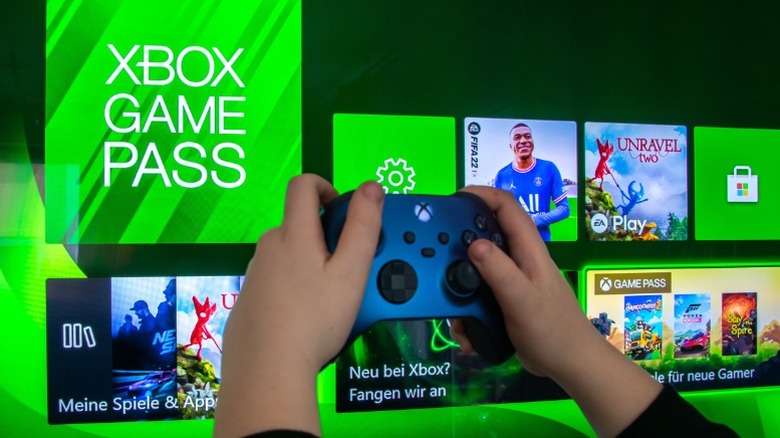
First, let’s talk about the controller. You specifically need an Xbox Wireless Controller with Bluetooth support. This includes models released with the Xbox Series X/S, the Xbox One S/X, the Xbox Elite Wireless Controller Series 2, and the Xbox Adaptive Controller. A quick way to tell if your controller has Bluetooth is to look at the plastic surrounding the Xbox button. If the plastic is part of the same face as the rest of the controller, it has Bluetooth. If it’s part of the "bumpers" on top, it’s an older model that won't connect directly to your TV without a specialized dongle.
On the TV side of the equation, the landscape has changed dramatically in recent years. Bluetooth-enabled Xbox controllers are now compatible with over 85% of smart TVs manufactured after 2021 that support cloud gaming applications. Whether you own a Samsung with the Gaming Hub, an LG running webOS, or a Sony powered by Google TV, the chances are high that your screen is ready for action.
However, distance and interference are the silent killers of a good gaming session. While Bluetooth technically offers a wireless range of up to 30 feet, low-latency gaming on smart TVs is truly optimized when the controller is within 10 feet of the display. Any further, and you might notice a slight delay between your button press and the action on the screen—a death sentence in competitive shooters.
Method 1: Pairing via the Xbox App (Best for Samsung & LG)
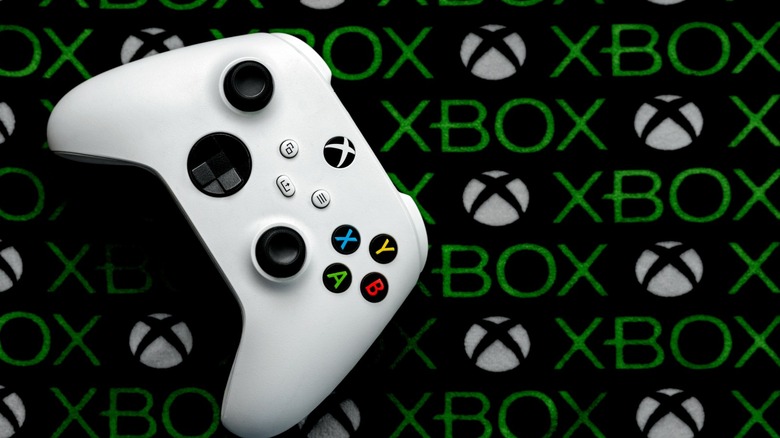
If you own a newer Samsung or LG TV, the process is incredibly streamlined thanks to dedicated gaming applications. Samsung’s Gaming Hub, in particular, has become the gold standard for this "cloud-first" approach. You can connect an Xbox controller to a smart TV using the Xbox app: Open the app, select the controller icon, choose 'Pair a controller,' and then select your device from the TV's Bluetooth list.
Here is the step-by-step breakdown of how to make that connection:
- Launch the App: Navigate to your TV’s home screen and open the Xbox app (or the Gaming Hub on Samsung TVs). You may need to sign in with your Microsoft account to access your Game Pass library.
- Initiate Pairing on Screen: Within the app interface, look for the Controller icon (usually located in the top navigation bar or sidebar). Select Pair a controller.
- Activate the Controller: Press and hold the Xbox button to turn the controller on. Then, press and hold the Pair button (the small button near the USB port) for about three seconds. The Xbox logo should start blinking rapidly, indicating it is searching for a host.
- Finalize the Handshake: Your TV will display a list of found Bluetooth devices. Use your TV remote to select Xbox Wireless Controller. You should see a prompt on the TV confirming that the pairing was successful.
Once connected, the controller can often be used to navigate the entire TV UI, not just the Xbox app, allowing you to ditch the remote entirely for your late-night Netflix binges.
Method 2: Pairing via System Settings (Universal Method)
If your smart TV doesn't have a dedicated Xbox app, don't worry—you aren't left in the dark. As long as your TV supports Bluetooth HID (Human Interface Device) profiles, you can still pair the controller by navigating to the TV's System or Connection settings, selecting Bluetooth or Accessory settings, and searching for new devices.
This method is common for Android TV, Google TV, and older smart TV models. The menus might vary slightly depending on the brand, but the logic remains the same:
- Step 1: Open Settings: Use your remote to navigate to the Settings gear icon on your TV's home screen.
- Step 2: Find Bluetooth: Look for a menu labeled Remote & Accessories, Connection, or System Settings. Under these, you will find Bluetooth Settings.
- Step 3: Add Accessory: Select the option to Pair a new device or Add Accessory. Your TV will now enter its own "searching" mode.
- Step 4: Sync the Controller: Just like in Method 1, hold the Xbox button to power up and then hold the Pair button for three seconds until the logo flashes.
- Step 5: Select and Confirm: Your TV will list "Xbox Wireless Controller." Highlight it and press "OK" or "Select" on your remote.
Pro Tip: If your TV asks for a PIN during the pairing process (which is rare but happens on older firmware), try "0000" or "1234." In most cases, however, modern controllers and TVs will pair without requiring a manual code.
Pro Tips for Reducing Input Lag and Latency
Connecting the controller is only half the battle. The real challenge in cloud gaming is "input lag"—the time it takes for your command to travel to the cloud and back to your screen. While Bluetooth is convenient, it can introduce a few milliseconds of delay. To ensure your gameplay feels as snappy as possible, consider these optimizations:
1. Network Optimization Bluetooth and Wi-Fi often fight for the same airwaves. If possible, connect your Smart TV to the internet via an Ethernet cable. If you must use wireless, ensure your TV is connected to a 5GHz Wi-Fi band rather than the older 2.4GHz band, which is more prone to interference from other household devices.
2. Enable 'Game Mode' Most modern TVs have a specific picture setting called "Game Mode." This isn't just about color; it actually turns off the TV's post-processing features (like motion smoothing) to reduce the time it takes for the image to appear on the screen. This is the single most important setting for a responsive experience.
3. The 'Unplug' Trick A common frustration for gamers is having their controller keep turning on their actual Xbox console in the other room while they try to pair it with the TV. To prevent the console from "stealing" the connection, temporarily unplug your Xbox console from the power outlet during the initial pairing process with your TV.
4. Power Saving Settings If you are using a streaming stick (like a Chromecast with Google TV or a Fire Stick) plugged into your TV, navigate to the developer settings and disable USB Power Saving. This ensures the Bluetooth receiver always has full power, preventing drops in connection during intense gameplay.
Alternative: Wired Connection via USB
Sometimes, the wireless lifestyle isn't all it's cracked up to be. If you find the Bluetooth lag too distracting, or if you simply don't want to worry about batteries dying mid-boss-fight, there is a simple alternative: the wired connection.
Most smart TVs have at least one USB-A port. By using a long USB-C cable (for Series X/S controllers) or a Micro-USB cable (for older Xbox One controllers), you can plug directly into the TV.
Wireless vs. Wired Connection
| Feature | Bluetooth Wireless | Wired USB Connection |
|---|---|---|
| Setup Ease | Requires pairing mode steps | Plug and play |
| Latency | Minimal (optimized for 10ft) | Zero lag |
| Mobility | High (move freely around the room) | Limited by cable length |
| Battery | Requires AA batteries or pack | Powered by the TV |
| Stability | Potential for interference | 100% stable |
While a wired connection eliminates the "freedom" of wireless gaming, it is the superior choice for competitive games where every millisecond counts. Additionally, most smart TVs will automatically recognize the controller the moment it's plugged in, bypassing the need for any Bluetooth menu navigation.
FAQ
Q: Can I connect more than one Xbox controller to my smart TV at once? A: Yes, most modern smart TVs manufactured after 2021 support at least two simultaneous Bluetooth connections for local multiplayer. However, keep in mind that using multiple Bluetooth devices can occasionally increase latency. For the best experience in local co-op, consider plugging one controller in via USB.
Q: Why does my controller keep disconnecting from the TV? A: This is usually due to interference or low battery. Check that your batteries are fresh. If the issue persists, ensure there aren't other major electronic devices (like microwaves or high-powered routers) sitting directly between your controller and the TV. Also, check for TV firmware updates, as manufacturers frequently release patches to improve Bluetooth stability.
Q: Will my Xbox controller work with apps like Netflix or YouTube on the TV? A: Generally, yes. Once paired via the system settings, the Xbox controller acts as a standard Bluetooth remote. You can use the D-pad to navigate menus, the 'A' button to select, and the 'B' button to go back.
Ready to Play?
You’ve got the hardware, you’ve mastered the pairing mode, and you’ve optimized your settings for peak performance. The barrier between you and your favorite games has never been thinner. Whether you're exploring the stars in Starfield or taking a quick lap in Forza, your smart TV is now a full-fledged gaming station.
If you're looking to expand your setup further, check out our guides on the best cloud gaming subscriptions for 2024 or how to boost your home Wi-Fi for a lag-free experience.