Whether you are waiting in line at the grocery store or stuck in a late-afternoon meeting, the anxiety of missing a crucial play is a feeling every sports fan knows too well. In the past, staying updated meant constantly unlocking your phone, opening an app, and waiting for the refresh icon to spin. Today, that friction has vanished. Modern smartphones now allow you to "pin" live scores directly to your interface, transforming your home screen or lock screen into a real-time scoreboard.
Interestingly, the ability to track games without opening an app isn't a new concept, though the execution varies wildly between platforms. Android users have enjoyed native floating sports score bubbles since 2018—a full four years before Apple debuted its "Live Activities" feature in 2022 with iOS 16.1. Regardless of which side of the green-bubble-vs-blue-bubble divide you sit on, setting up these alerts is a game-changer for your productivity and your peace of mind.
To pin live scores on Android, you simply need to search for a match in the Google app and tap Pin Live Score. However, you must first grant the Display Over Other Apps permission for the floating bubble to appear. On the iPhone side, you must enable Live Activities within your Settings and use a supported app like Apple TV or Apple News to follow a specific game, which then populates updates on your Lock Screen or within the Dynamic Island.
How to Pin Live Sports Scores on Android (Google App)
Android’s approach to live scores is built around the "floating bubble" concept, similar to Facebook Messenger’s "Chat Heads." This feature is handled almost entirely through the Google app, which comes pre-installed on virtually every Android device. Before you can start pinning games, you need to ensure your permissions are correctly configured, as the bubble requires the ability to "draw" over other applications you might be using, such as Chrome or WhatsApp.
Step 1: Granting Necessary Permissions
Navigate to your phone's Settings, then go to Apps (or Apps & Notifications). Find the Google app in the list and look for a setting titled Display over other apps or Appear on top. Ensure this is toggled to Allowed. Without this, the Google app will attempt to pin the score, but the bubble will never actually manifest on your screen.
Step 2: Finding Your Match
Open the Google app or use the Google Search bar on your home screen. Type in the name of your favorite team or a general league query like "NBA scores" or "Premier League standings." Google will present a "Match Card" for ongoing or upcoming games. On this card, you will see a prominent button labeled Pin live score.
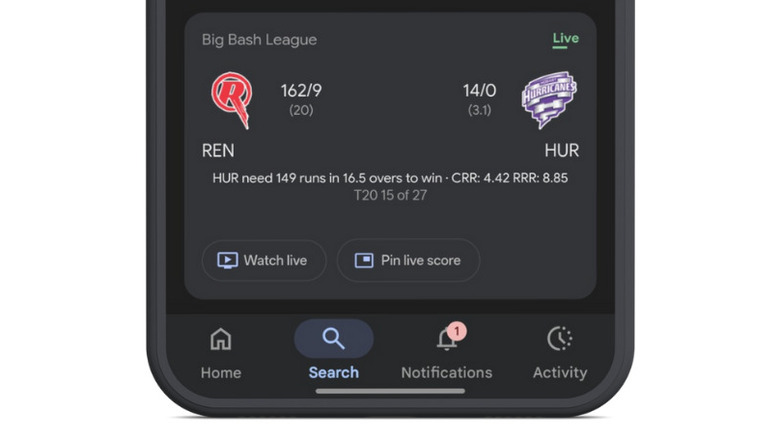
Step 3: Interacting with the Floating Bubble
Once you tap that button, a small, circular icon featuring the team logos and the current score will pop onto your screen. You can tap and hold this bubble to drag it anywhere along the edges of your display.
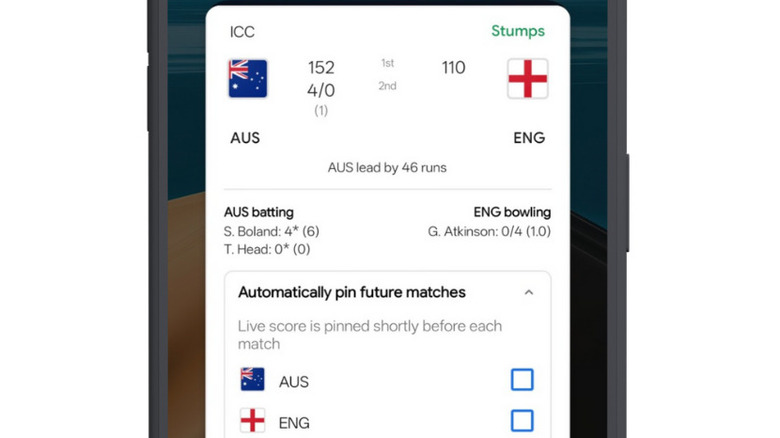
Tapping the bubble once will expand it, offering quick links to Box Scores, Lineups, and News Updates. To remove the bubble once the game is over, simply tap and hold it, then drag it down to the X icon at the bottom of your screen.
Advanced Android Tips: Automatic Pinning & Customization
For the die-hard fan who never wants to manually search for a game, the Google app offers a "set it and forget it" option. When you have a live score pinned, tap the bubble to expand it and look for the option to Automatically pin future matches. This allows you to select specific teams (like the Los Angeles Lakers or Manchester City) so that every time they play, the score bubble automatically appears on your home screen the moment the whistle blows.
We are also seeing this technology evolve beyond simple bubbles. For instance, the Android 16-based OxygenOS 16 update for OnePlus devices has significantly expanded live tracking utility. It integrates real-time alerts directly into the selfie camera cutout—creating a "Fluid Cloud" experience that mimics Apple's Dynamic Island but with deeper integration for third-party sports apps. This move signals a shift from floating overlays toward more integrated, hardware-level UI notifications.
How to Get Live Sports Scores on iPhone (iOS Live Activities)
Apple’s entry into the live tracking space arrived later but with a focus on aesthetic integration. Known as Live Activities, these updates appear as sleek widgets on your Lock Screen or as an interactive "pill" in the Dynamic Island (on iPhone 14 Pro models and all iPhone 15/16 models).
Step 1: Enable Live Activities in System Settings
First, ensure your device is updated to at least iOS 16.1. Go to Settings, scroll down to Face ID & Passcode (or Touch ID & Passcode), and enter your PIN. Scroll down to the Allow Access When Locked section and make sure the toggle for Live Activities is turned On.
Step 2: Use the Apple TV App or Apple News
While many third-party apps support this, the most reliable native way is through the Apple TV app.
- Open the Apple TV app.
- Search for the game you want to track (e.g., "MLB" or "Friday Night Baseball").
- Tap the game to open its details.
- Tap the Follow button (often represented by a plus sign or a "Follow" label).
Step 3: Viewing the Updates
Once you start following a game, the live score will automatically appear at the bottom of your Lock Screen. If you have an iPhone with a Dynamic Island, you will see a miniature score persistent at the top of your screen while using other apps. You can long-press the Dynamic Island to see an expanded view of the game clock and recent scoring plays without leaving your current app.
Comparison: Android Floating Bubbles vs. iOS Live Activities
While both systems aim to solve the same problem, they offer very different user experiences. Android's system is more intrusive (in a way that power users often prefer), while iOS is more integrated into the OS's notification architecture.
| Feature | Android (Google App) | iOS (Live Activities) |
|---|---|---|
| Primary UI | Floating "Bubble" overlay | Lock Screen Widget / Dynamic Island |
| Launch Year | 2018 | 2022 |
| Interaction | Draggable anywhere on screen | Fixed position / Top of screen |
| Persistence | Stays on top of all apps | Integrated into notification tray |
| Setup | Search in Google App | "Follow" in TV/News App |
| Customization | Auto-pinning for teams | Extensive third-party app support |
Third-Party Apps for Enhanced Tracking
While the native Google and Apple solutions are excellent, they sometimes lack the depth required for niche sports or hyper-detailed statistics. If you find the native options too basic, consider these third-party alternatives that have mastered both Android Bubbles and iOS Live Activities:
- FotMob: Widely considered the gold standard for soccer (football) fans. It offers incredibly fast updates and highly customizable Live Activities.
- TheScore: Excellent for North American sports (NFL, NBA, NHL). It provides a more "news-heavy" approach to pinned scores.
- Sports Alerts: A lightweight app that is often praised for having the fastest "push" notifications in the industry, often beating the TV broadcast by several seconds.
Download FotMob for Live Soccer Updates →
Troubleshooting: Why aren't my scores pinning?
If you've followed the steps above but the scores aren't appearing, the culprit is usually a hidden setting or a regional restriction.
- Check Background Data: Both Android and iOS require "Background App Refresh" or "Background Data" to be enabled for the specific app (Google, Apple TV, or FotMob). If your phone is in Low Power Mode or Battery Saver Mode, live scores will often stop updating to save juice.
- Verify Location Services: Some sports broadcasting rights are regional. Ensure the app has access to your location, as some leagues (like the MLB) may restrict live data based on "blackout" rules.
- App Updates: Ensure you are on the latest version of the Google app or iOS. As leagues change their data providers, older versions of apps often lose the ability to pull live scores.
FAQ
Q: Does pinning live scores drain my battery? A: Yes, but minimally. Because the phone must constantly fetch data from the internet to update the score, it uses slightly more power than a static home screen. However, modern processors and efficient APIs like Apple’s "Apple Archive" for Live Activities make this impact almost unnoticeable for most users.
Q: Can I pin multiple games at once? A: On Android, you can pin multiple bubbles, which will stack on top of each other. On iOS, the Dynamic Island can display two Live Activities simultaneously (splitting into a circular icon and a pill), and the Lock Screen can hold several stacked widgets.
Q: Why don't I see the "Pin Live Score" button for every sport? A: The feature depends on Google or Apple having a data partnership with the specific league. Major leagues (NFL, NBA, MLB, EPL) are almost always supported, but smaller, local leagues or niche sports may not have the necessary real-time data feeds.
Staying connected to your favorite teams doesn't have to be a distraction. By mastering these pinning techniques, you turn your smartphone into a passive information hub, allowing you to stay productive while ensuring you never miss a buzzer-beater again.